Introduction
On occasion you may find the need to import certain columns/fields as custom into CT Live for various uses. Examples of this are Elite athlete status data, wave assignments, Wheelchair or Pushrim status, Clydesdale/Athena status, etc. In most cases, Custom data is used to map athletes or teams to Brackets or Waves.
This guide will show you how to import custom data using the Import Athletes Tool in CT Live 2.0.
Define Columns
As with any Athlete Import any athlete data must be imported with an External ID number. If you have multiple columns to map to Custom value, make sure you clearly identify each column with a unique name.
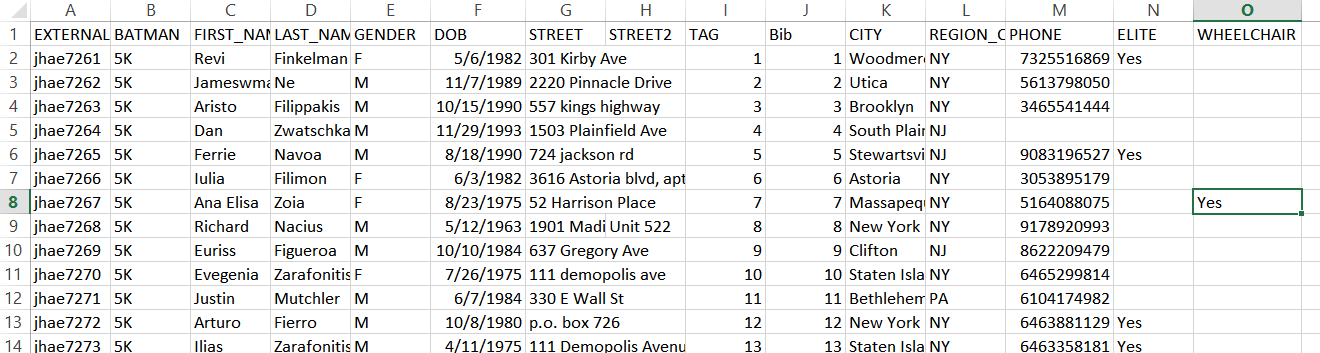
In the example file below, I am importing columns that contain data about Athletes' status as Elites and Wheelchair information.
Import Custom Field
- Click on the "Import Athletes" page, located in the side Menu of the Athlete tab in CT Live 2.0.
- Select an import file from your computer to upload.
- Once the file is loaded into the importer, hit next.
-
The page you land on will be the mapping part of the import process. By default since your custom field columns will not be recognized as fields in CT Live, they will be ignored. For the columns you wish to import as custom fields, simply select the button titled "new" next to the corresponding fields.
Subsequent Imports
For subsequent imports, you will be able to directly map to the field in our system rather than selecting "new:. After an initial import, the map for that import is saved under "custom fields" in the field map dropdown and can be selected to be used.
- Continue your import as normal from step 6 of these instructions: How to Import Athletes and Teams in CT Live 2.0
Once the Import is Complete
Once we complete the import, the custom data will be viewable in reports and on the athletes' and teams Registration Info tabs and can be used to map athletes with specific answers to Custom Brackets and Waves.