Introduction
Before photos can be displayed with Athletes' results, you have to sync one of the photos to its corresponding athlete. Once you've matched one photo to an athlete in the photo, ChronoTrack Live will use the time stamp on the photo with the finish time of the athlete you synced it from to sync all other photos. This process requires you to first Upload Photos to your event.
Auto-Syncing Photos
- Once you've Uploaded Photos to your event, navigate to the Media > Photos tab.
- Find a photo where an Athlete is directly over the Finish Line. The bib does not have to be visible as long as you know the runner’s bib number or can check another image where the bib number is plain. Position over the mat is the key.
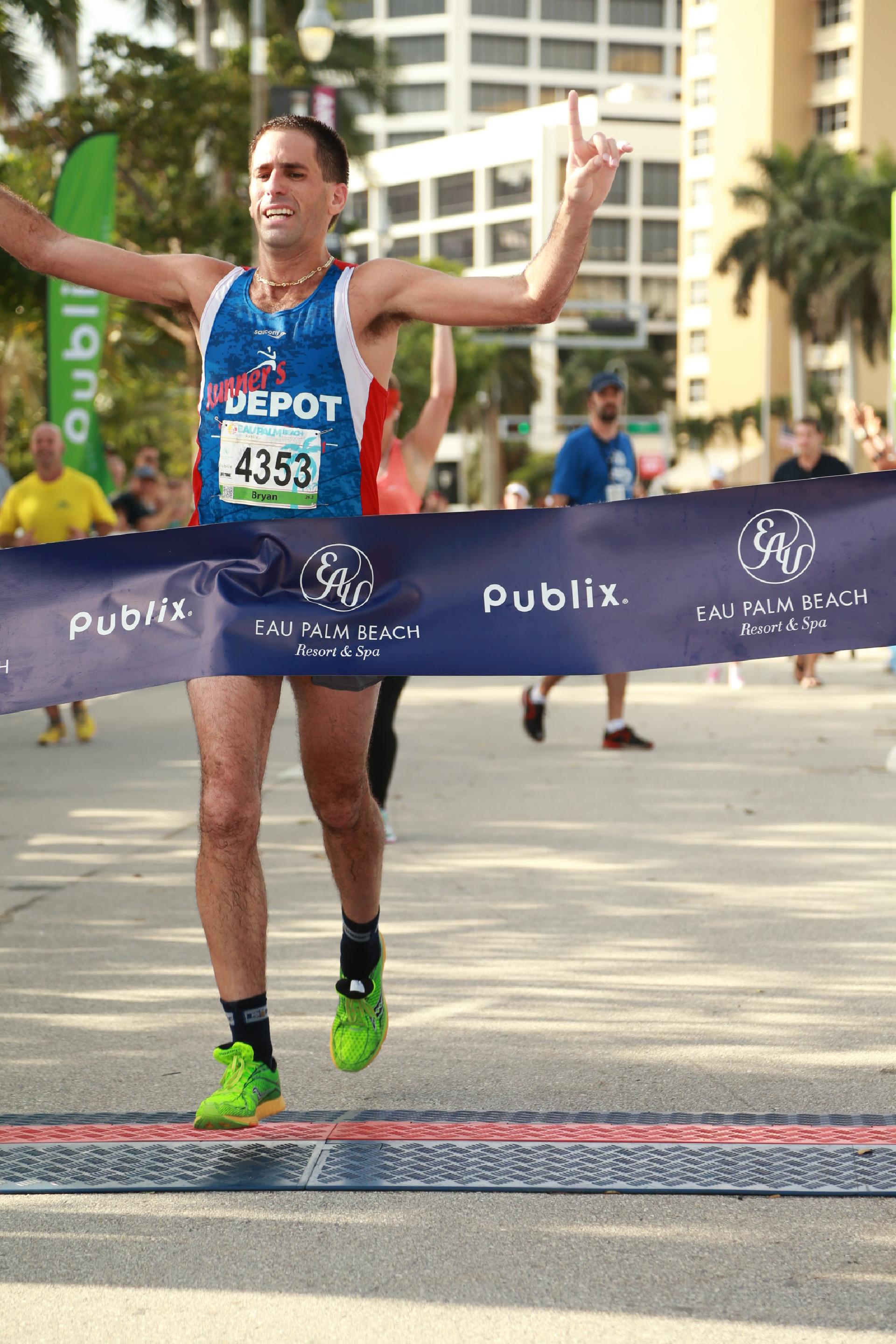
- Once you've identified a good photo click it, and enter the athlete’s Bib number in the text box at the bottom of the photo. If you don't know the athlete's bib number or can't see it clearly, advance to a further image where the bib may be more easily seen, then go back to the image where the athlete is directly over the line.
- Click the arrow icon next to the Save & Continue button and select Sync Camera

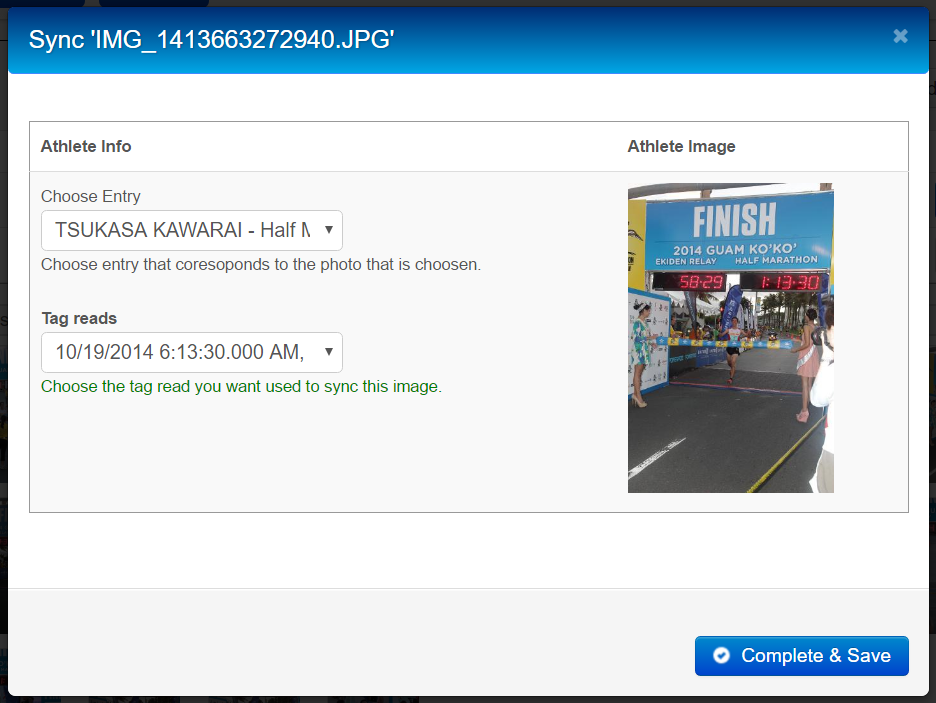
- A window will appear where you can verify that you entered the bib for the correct person and select the proper time with which to associate the photo. If you're satisfied that the information is correct, click Complete & Save.
- If successful, you will see a green pop-up in the top right corner of the screen saying [Camera Name] Sync Successful. If there was an error, a red pop-up will display the reason for the error.
Once the camera is synced, the page will auto-refresh and the Tagging Status column will say "Auto Sync". The Unsync button will also appear.
Depending on the number of participants in the event, photos may not appear in Online Results immediately, so please allow a couple minutes for the Results to update for large events.
Manually Tagging Photos
If you shot portrait photos for athletes at a photo station before/after the race, you'll need to manually tag these since there's no associated timing data for those photos.
To manually tag a photo, simply click a photo to enlarge it, type the runner's bib into the field at the bottom, and click Save & Continue.
Hiding, Unsyncing, and Untagging
What is Hiding?
Hiding a Camera will quickly and easily remove all photos on that camera from Results while maintaining Syncing and Tagging status.
What is a Synced Photo?
A Synced photo is a photo that has been associated to athletes using the "Syncing Photos" process described above. Synced photos are applied to athletes based on a general time frame around their valid tag read for the Point. All Synced photos will be immediately available for athletes to view in their results.
What is a Tagged Photo?
Tagging specifically assigns the bib number of each athlete to each photo within their time block. Untagged photos will still show up in Athletes' results if they have also been Synced. Tagging happens in one of two ways:
- Photos are manually matched to specific bib numbers
- Auto-syncing photos automatically triggers Auto-Tagging.
Hiding
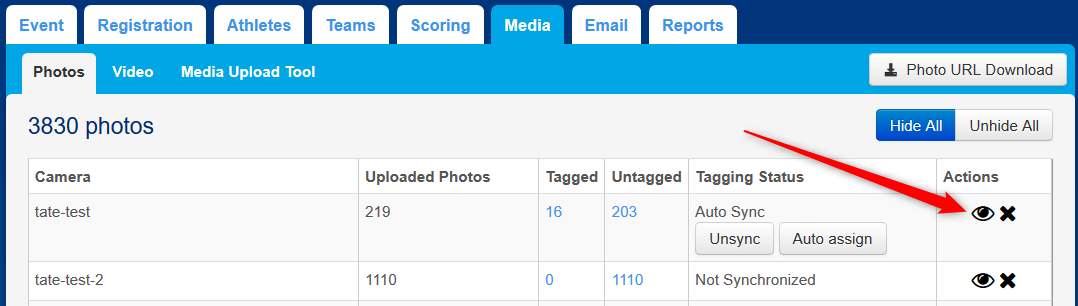
You can hide all Photos on a Camera by clicking the eye icon next to the Camera on the Media tab. A window will appear prompting you to confirm the Hide action. A hidden Camera's eye icon will be closed. You can Unhide a camera at any time by clicking the eye icon again.
Unsyncing
Unsyncing will both Unsync Auto-Synced photos AND Untag photos, taking the camera back to where it was just after the photos were uploaded. Unsyncing is useful for when you no longer want to use the photos on a Camera OR for hiding specific photos from an athlete's profile.
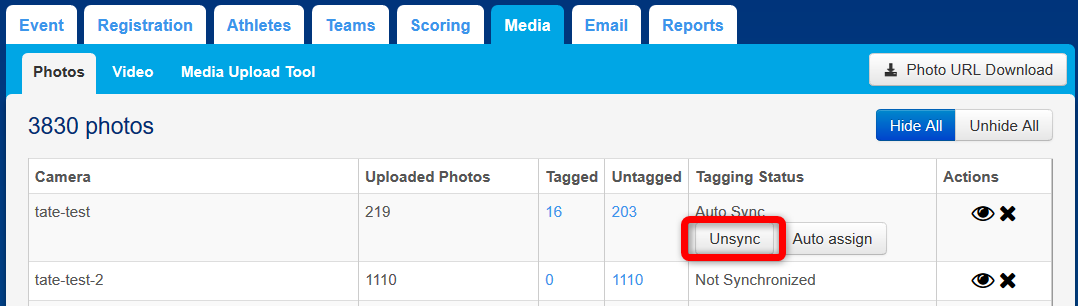
> To Unsync a whole Camera to quickly hide all its photos from Results, click the Unsync button next to that Camera on the Media tab, and then confirm in the window that appears.
> To Unsync a specific photo from an individual Athlete:
- Go to the Athletes tab and locate the athlete.
- Click the Athlete's ChronoID, then go to their Media tab.
- Locate the photo you want to Unsync and click on it to enlarge it. All bibs that the photo has been associated with will show in a row along the top of the enlarged photo.
- Click the X next to any Bibs you want to Unsync.
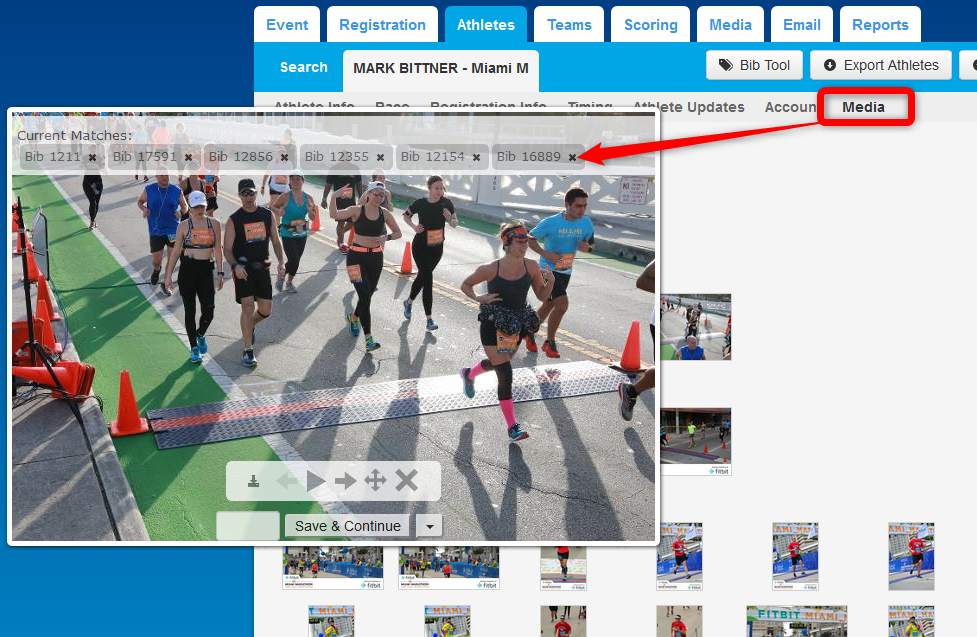
The photo(s) you Unsynced will no longer show up on the athlete's profile, but any other bibs associated with the photo will still display for the other athletes.
Untagging
Untagging will remove the specific bib associations from each picture, but it will NOT Unsync an auto-synced camera, so photos will still appear on athlete profiles. Untagging is mainly useful for hiding photos that have been Manually Tagged.
Before you can Untag a Camera, its Auto-tagging process must have completed first. You can check on the progress of Auto-Tagging for a Camera by clicking the Show Progress button next to it.
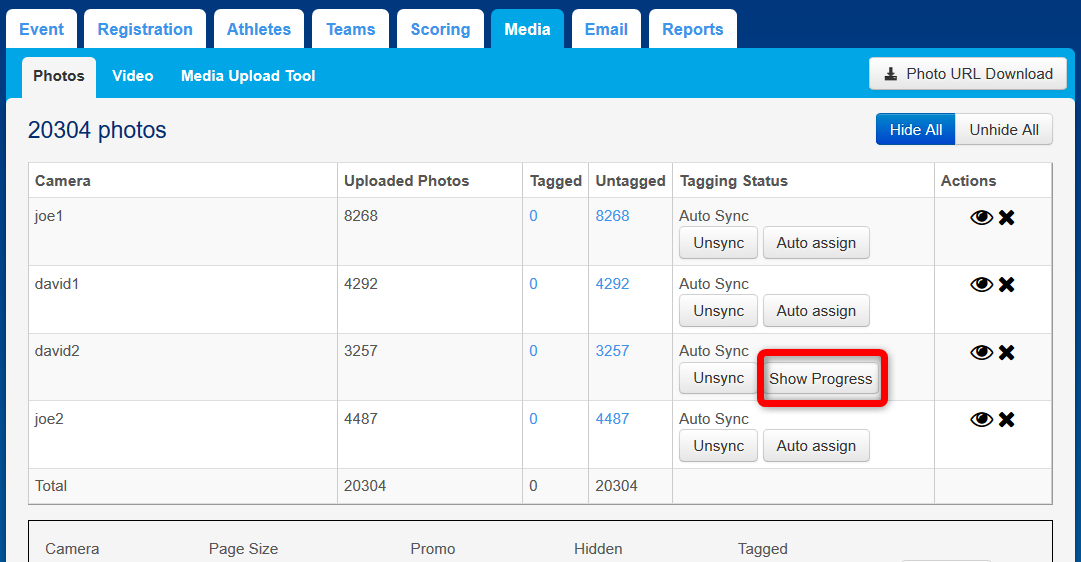
To Untag a Camera, click the X icon next to the eye icon, then confirm in the window that appears. The "Tagged" count for that Camera should return to 0.