Introduction
In order to use CCS Lite on your Windows computer, you must allow the application through Windows Firewall. If you use a 3rd-party firewall, check the supplied documentation. Otherwise, complete the following steps to add a firewall exception to:
Windows 7
- Click Start or press the Windows Key on your Keyboard.
- Enter the Control Panel. Select Windows Firewall.
- Click Allow a program or feature through Windows Firewall.
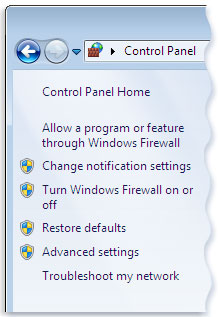
- Click Change settings. If you're prompted for an administrator password or confirmation, type the password or provide confirmation.
Select the check box next to CCS Lite (if unchecked), select the network locations you want to allow communication on, and then click OK.
Windows 8
When you install CCS Lite and SimpleClient on Windows 8, you should see a message pop up when you first open CCS Lite prompting you to allow it through the firewall. If you opted to allow the program on both Public and Private networks, the steps below shouldn't be necessary.
- Press the Windows Key on your Keyboard
- Type ‘firewall’ and a Search pane will appear to the right. Select Settings, then Windows Firewall
- Click Start and begin typing Firewall. Select Windows Firewall option when it appears on the right.
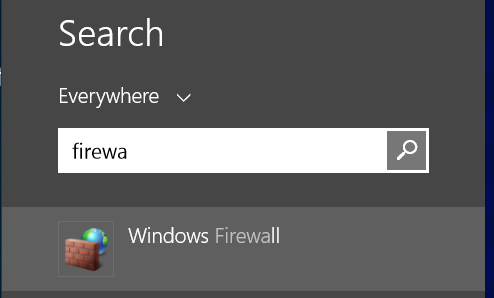
- Click Allow a program or feature through Windows Firewall.
- Click Change settings. If you're prompted for an administrator password or confirmation, type the password or provide confirmation.
- Select the check box next to CCS Lite (if unchecked), select the network locations you want to allow communication on, and then click OK.
Windows 10
When you install CCS Lite and SimpleClient on Windows 10, you should see a message pop up when you first open CCS Lite prompting you to allow it through the firewall. If you opted to allow the program on both Public and Private networks, the steps below shouldn't be necessary.
- Press the Windows Key on your Keyboard
- Type ‘firewall’ and a Search pane will appear to the right. Select Settings, then Windows Firewall
- Click Start and begin typing Firewall. Click Allow a program or feature through Windows Firewall when it appears in the results.
- Click Change settings. If you're prompted for an administrator password or confirmation, type the password or provide confirmation.
- Select the check box next to CCS Lite (if unchecked), select the network locations you want to allow communication on, and then click OK.
If you choose to add the program to the exception list, this port is only unlocked for the CCSLite program started from the specified path. You will block it again if you change the path of CCSLite. Instead, add TCP port 61610 to ensure that any program attaching to that port can be reached, regardless of its program path. Also, there may be other applications running with firewalls set (specifically programs like anti-virus, spyware protection, and ad blockers); either disable these programs, or add exceptions for CSSLite.